How to play party games on a TV
Phone party games are more fun when everyone can see the cards, the wheel and the scores on one big screen. Here are three ways to set it up, from easiest to most flexible.
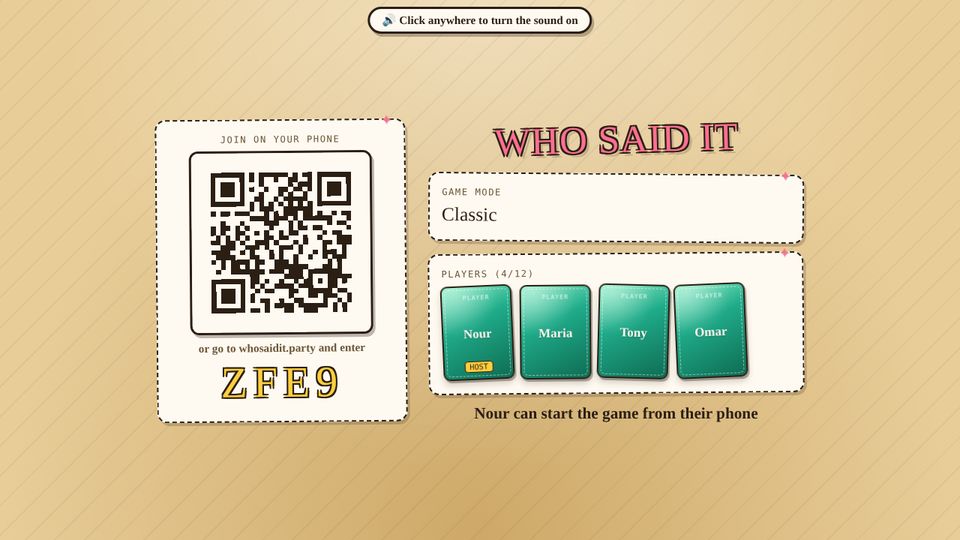
How it works
Everyone still plays on their own phone. The TV is just a shared screen: it shows the table, the reveals and the scores, and it never shows anything private like who wrote an answer or the secret word.
Option 1: the TV's own browser
Most smart TVs (Samsung, LG, Android TV, Google TV) have a web browser.
- Start a table on your phone as usual.
- On the TV, open the browser and go to whosaidit.party/?tv
- Type the 4-letter table code.
Good for: no extra devices. Downside: typing with a remote is slow, and some older TV browsers are sluggish.
Option 2: a laptop plugged into the TV
- Connect a laptop to the TV with an HDMI cable.
- Open whosaidit.party/?tv in the laptop's browser and type the code.
- Press F11 (or the full-screen button) so it fills the TV.
Good for: the smoothest picture and the best sound. This is the most reliable setup.
Option 3: cast from a phone or tablet
If your TV has Chromecast built in, or you have an Apple TV, you can mirror a spare phone or tablet's screen to it. Open the TV link on that device, then cast or AirPlay its screen.
Good for: no cables. Downside: the device has to stay on and unlocked, and mirroring can lag a little.
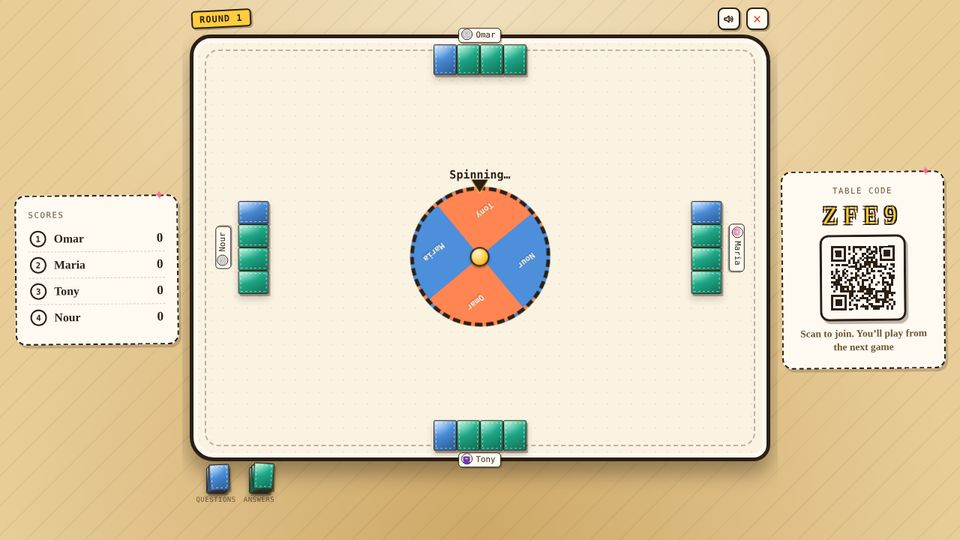
Tips for big groups
- Turn the sound on. Click once on the TV screen when it asks. The sound effects and the Chain Story narrator play through the TV speakers.
- Sit facing the screen. The reveals are made to be watched together.
- Latecomers scan the TV. The code and QR stay in the corner during the game, so new arrivals can join and play from the next game.
- Best modes on a TV: Classic (the wheel and the answer reveals), Chain Story (the story is read out over the TV) and Who Is It (the front pages).
More: how to host a game night · all game modes · play now →